
Enabling Application Discovery via VCF Operations for Networks Flows

With the release of VCF 9.1 I have been looking into various features and capabilities. One of which is Flow Based Application Discovery in VCF Operations and VCF Operations for Networks.
After deploying the Platform and Collector appliances I looked to begin the discovery but was faced with an error:
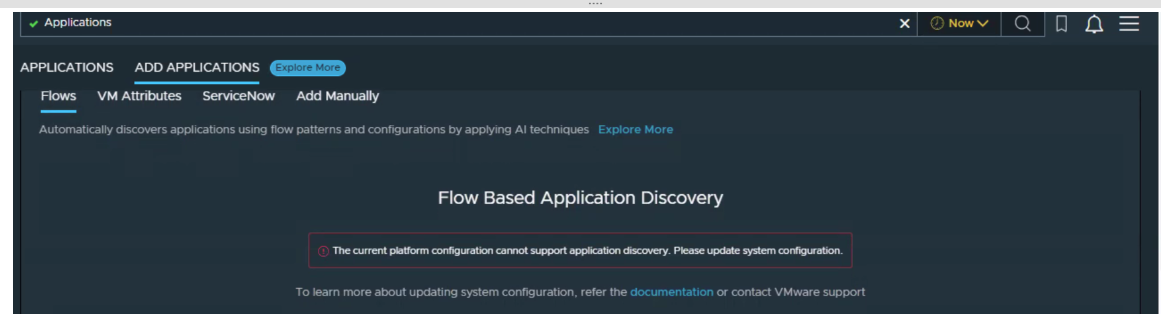
After some research I realised that you needed a minimum block size to be able to enable this feature (Extra Large) along with other minimums such as discovered VM count and minimum flow count. All details can be found here.
I had only deployed a medium platform appliance so I followed these instructions to increase my block size. I went with 16 vCPU, 64GB RAM and an additional 1TB disk.
Add an additional disk to increase the total allocated to 2TB, don’t extend the existing!
I also did not need to reserve the extra compute resources for my lab even though the above article mentions you should. Obviously I am in a lab here so follow official guidance in production.
After doing this I still had the original error so did some more Googling and came across this article.
So I SSH’d to the platform appliance using the user ‘support’ then elevate to ‘root’.
sudo suI then confirmed the additional disk had been used to automatically extend the ‘/dev/mapper/vg-var’ volume which it had:
df -h/dev/mapper/vg-var 1.9T 4.6G 1.8T 1% /varI then checked the brick size info file by running:
cat /home/ubuntu/build-target/deployment/brick-size.infoOutput:
root@aria-networks-platform:/home/support# cat /home/ubuntu/build-target/deployment/brick-size.info
XLARGEroot@aria-networks-platform:/home/support#
So far so good… As the KB advised, I logged into the VCF Operations for Networks UI directly and indeed did see the “Capacity configuration is mismatched” error, so clicked the ‘RECONFIGURE’ button.

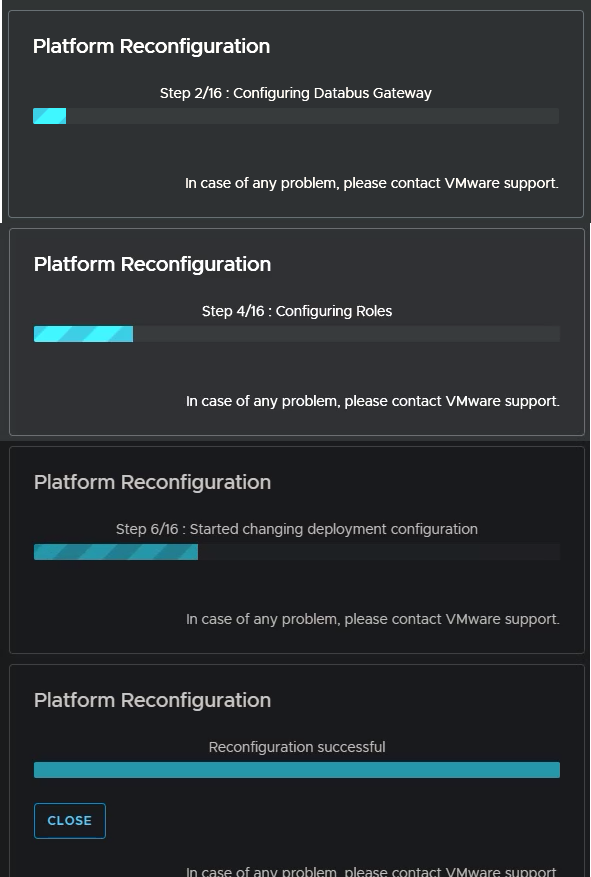
After around 10 minutes the process completes and you have a healthy System Status.
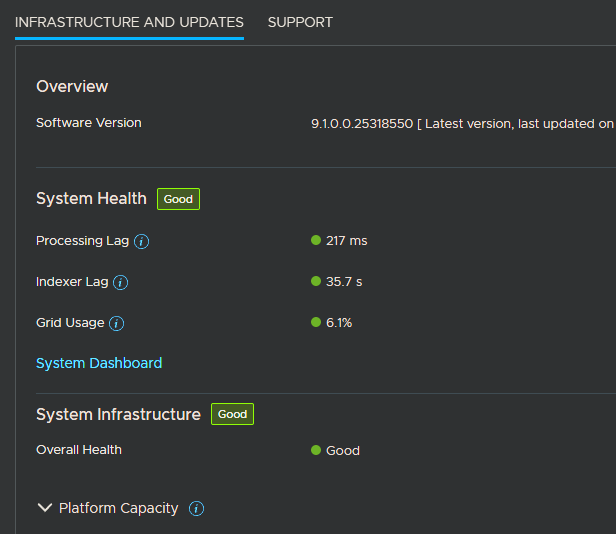
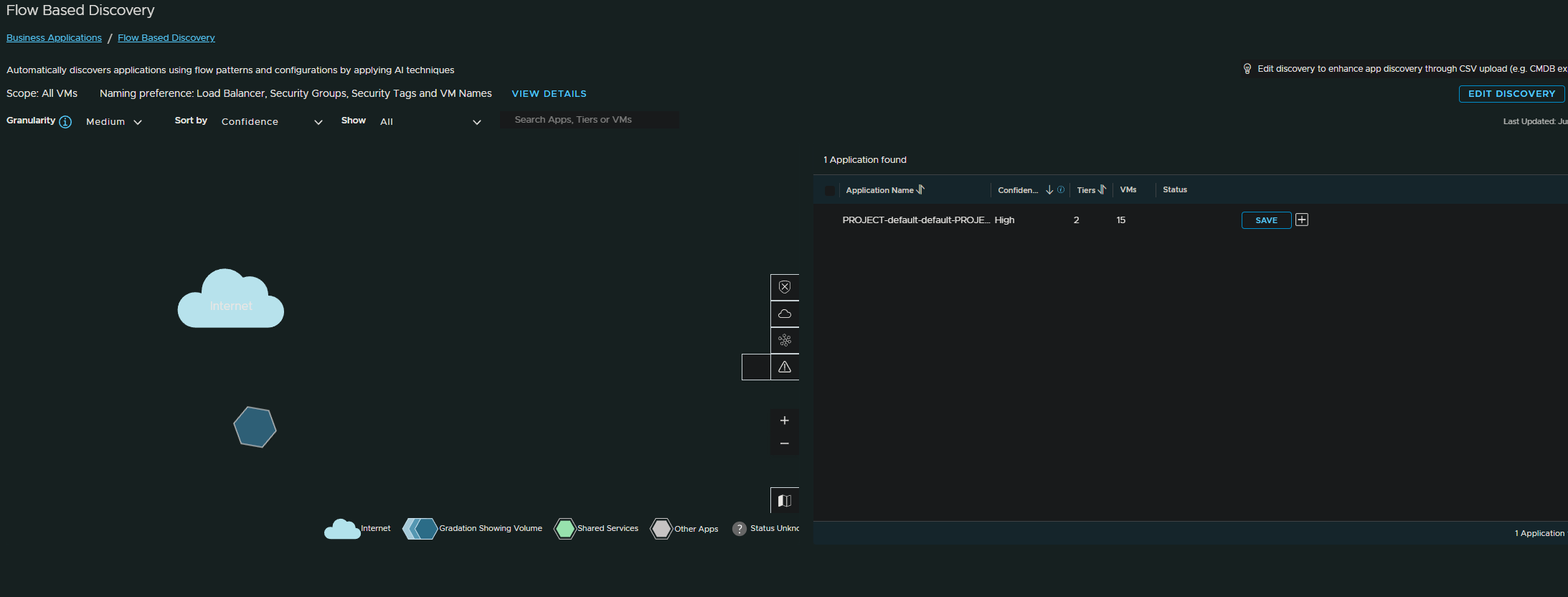
Heading back over to the Flow based discovery in the VCF Operations console, I was now ready to get going!
As always, thanks for reading!
If you like my content, consider following me on Twitter so you don’t miss out!