

I have been rebuilding my lab hosts a lot lately! Once because I fiddled too much with my vSAN cluster and killed it… Another more interesting occasion being the release of VCF 4.0 on VMUG and beginning the deployment of this!
I prefer to use Standard vSwitches for my management network in my labs and needed a quick and easy way to get the hosts back online with minimal effort. One thing I don’t like is seeing vSwitch0… I prefer seeing useful and descriptive naming, like I’m sure many others do!
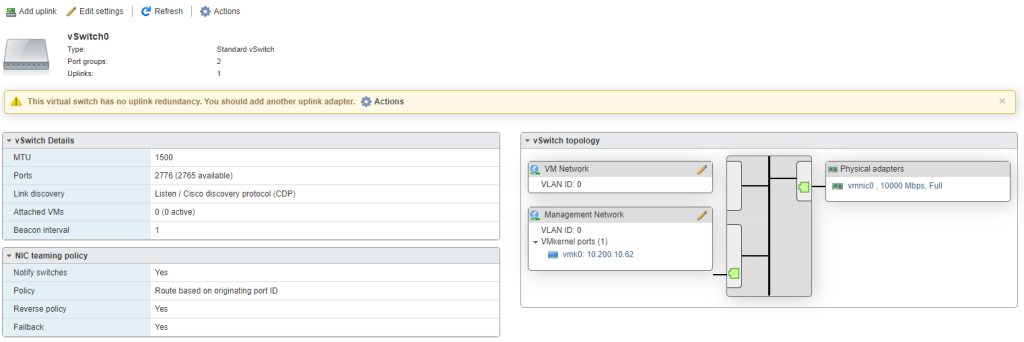
Below are a few lines of PowerCLI to quickly and easily create a new vSwitch using a spare VMNIC (you should be using more than one physical NIC for resiliency), then migrate the Management VM Kernel adapter and original VMNIC over to it, followed by a clean up of vSwitch0.
#Variables_
<#ESX Host to target#>_ $ESXHost = "ESX102.lab.local"
<#Name of the Management Switch#>_ $ManagementSwitchName = "vSS_Management"
<#vmnic to be used for Management Switch#>_ $ManagementSwitchNIC = "vmnic1"
<#MTU size for Management Switch#>_ $ManagementSwitchMTU = "1500"
<#Name of the Portgroup for the VMKernel Adapter#>_ $ManagementVMKPortGroupName = "vSS_VMK_Management"
<#Name of the PortGroup for VM's#> $ManagementPGSwitchName = "vSS_PG_Management"_

<#Management VMKernal Nic to be migrated#>_$vNic = "vmk0"
<#Management VMKernel assosiated pNic#>_$PhysiscalNic = "vmnic0"
<#Old vSwitch#>_ $OldvSwitch = "vSwitch0"

#New Standard Management Switch_
$NewSwitch1 = New-VirtualSwitch -VMHost $ESXHost -Name $ManagementSwitchName -Nic $ManagementSwitchNIC -mtu $ManagementSwitchMTU
$NewSwitch1 | New-VirtualPortGroup -Name $ManagementVMKPortGroupName -VLanId 0
$NewSwitch1 | New-VirtualPortGroup -Name $ManagementPGSwitchName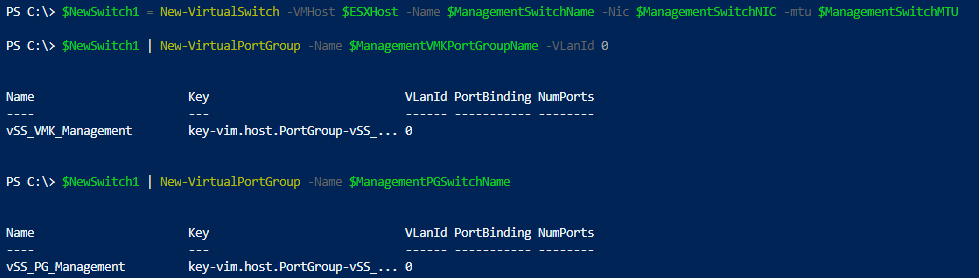
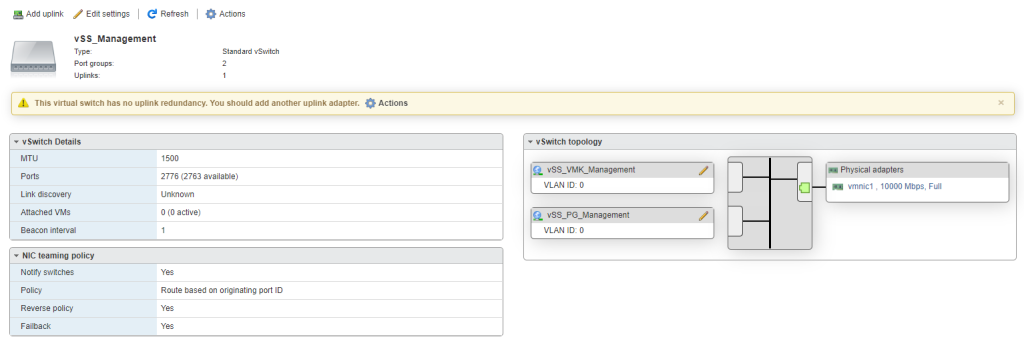
Once the new vSwitch is in place, the next block of code migrates the Management VM Kernel adapter and the VMNIC over to it.
#Migrate Mangement VMKernel Adapter_
$mgmt_vmk = Get-VMHostNetworkAdapter -VMHost $ESXhost -Name $vNic
$pnic = Get-VMHostNetworkAdapter -VMHost $esxhost -Name $PhysiscalNic
Add-VirtualSwitchPhysicalNetworkAdapter -VirtualSwitch $NewSwitch1 -VMHostPhysicalNic $pnic -VMHostVirtualNic $mgmt_vmk -VirtualNicPortgroup $ManagementVMKPortGroupName -Confirm:$false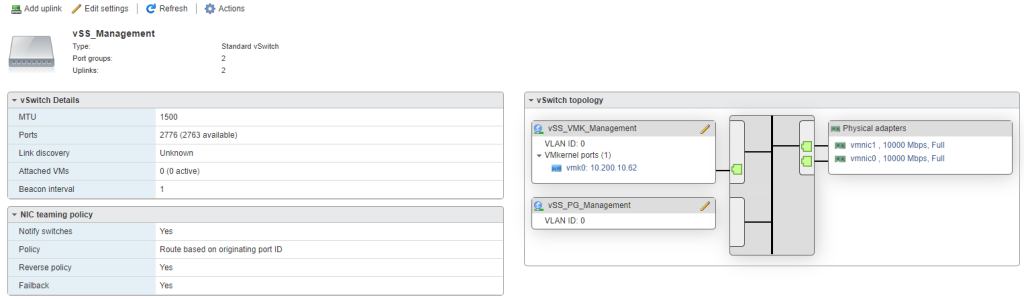

Now the clean up block. This removes the now redundant vSwitch0.
#Remove Original vSwitch0_
Remove-VirtualSwitch -VirtualSwitch (Get-VirtualSwitch -VMHost $ESXHost  | Where-Object {$_.Name -eq $OldvSwitch}) -Confirm:$false
Note: If you have more than two VMNIC’s associated with the vSwitch, you will need to adjust this to include them.
Thanks for reading.