
Deploying VMware vSphere Foundation (VVF) 9.1 in a Lab

I have been working with a customer who is not able to go full VCF (VMware Cloud Foundation), so is looking to deploy VVF (VMware vSphere Foundation). If you do a quick google, there are loads of blogs and posts on VCF deployments, but very little on VVF. Check out my previous series of VVF content relating to version 9.0 here:
- VMware vSphere Foundation (VVF) 9.0 Upgrade to 9.0.1
- VMware vSphere Foundation (VVF) Day 2 Operations
- VMware vSphere Foundation (VVF) 9.0 Greenfield Deployment
- VMware vSphere Foundation (VVF) Introduction
- VMware vSphere Foundation (VVF) Basic Lab Configuration
I decided to do a new series of posts about VVF 9.1 to help my customer visualise some of the things we have been discussing and to allow me to make sure I did not miss anything.
Over the series I will cover Installation, Day 2 and Patching of a VVF environment.
Installation Options?
When it comes to installing your VVF environment you have two options available. The first, and most common, is to use the VCF Installer. Don’t let the name faze you, the same installer that deploys VCF will also deploy VVF for you. The great thing about doing it this way is the level of automation you get, this process will deploy vCenter, VCFMS, VCF Operations and the License server. It will do all the configuration you choose for storage and networks and the integration into Operations.
The other option you have is to do all this manually. Now you may ask why you would want to do it this way when I have just detailed all the benefits of using the VCF Installer. The answer is the VCFMS (VCF Management Services) layer. This was introduced in 9.1 and is the new container based management services layer that runs services such as VCF Logs, Depot Service and Identity. Now if you are using any of these you have to install the VCFMS and use the VCF Installer. But if you don’t use these and are looking for a minimal footprint in your environment then you can install manually and not deploy the VCFMS.
This blog will cover deployment using the VCF Installer and if I get time later I will also write up a comparison of doing it manually.
Meet the prerequisites
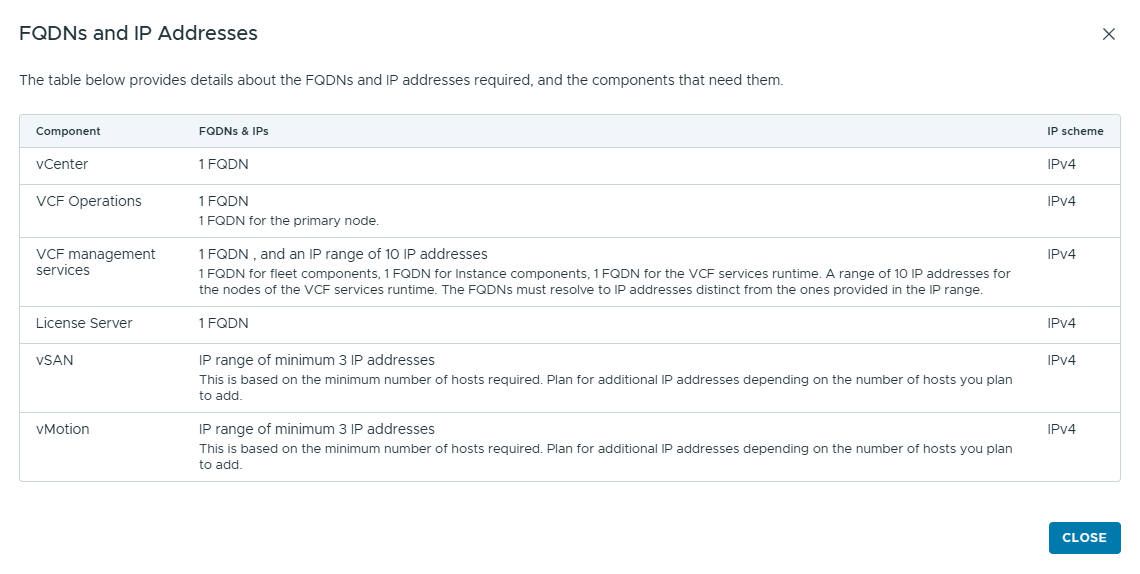
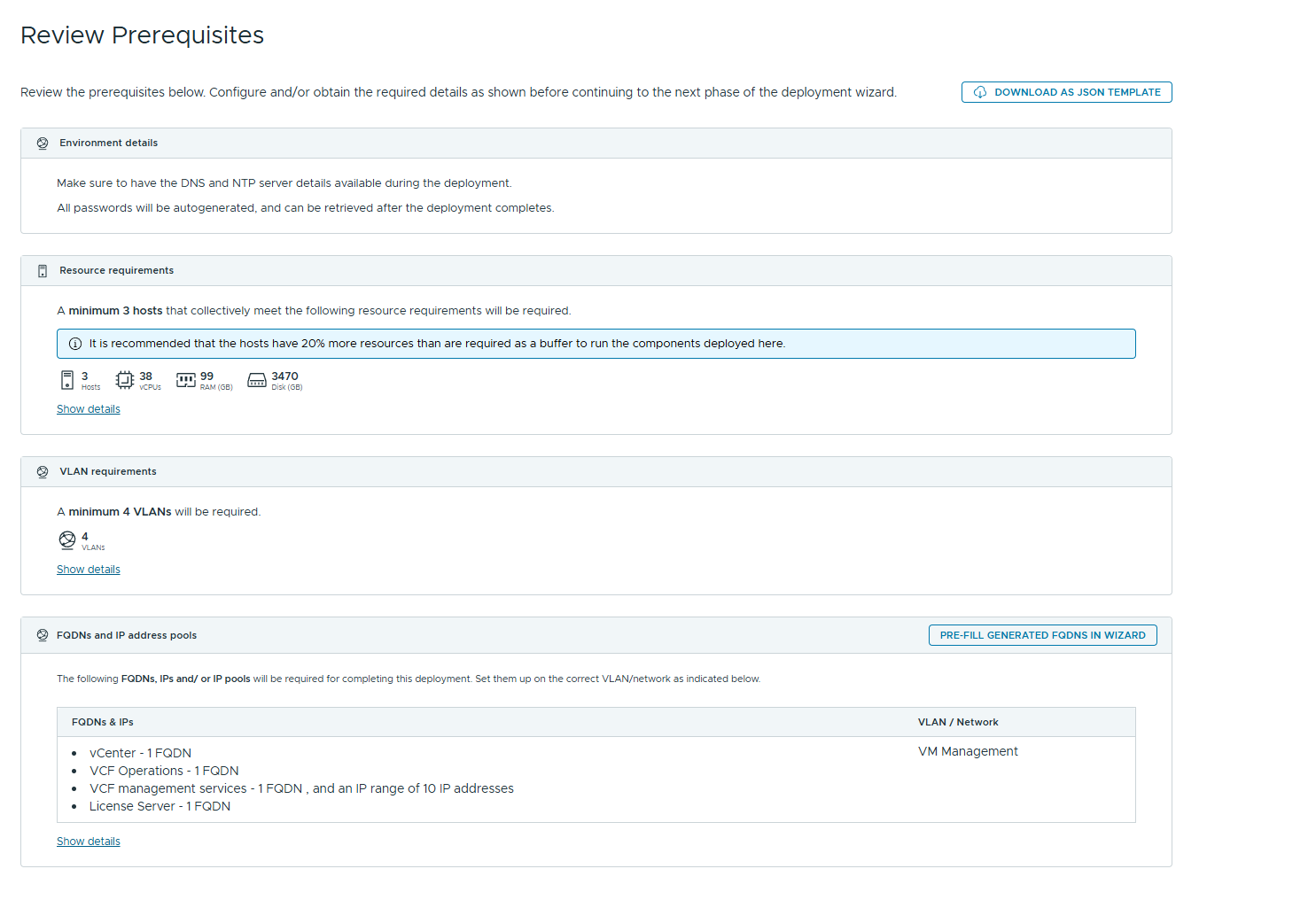
Before you start you need to make sure you have all your DNS entries configured for all the components. This will include FQDN’s for ESX servers, vCenter, VCF Operations, VCF License Server, VCF Management Services (Fleet, Instance and VCF services runtime) and an IP range of at least 10 IP addresses for the management services.
Install via VCF Installer Wizard
This will be a long enough blog post as it is, so I won’t cover certain parts, the first two are deploying the VCF Installer itself. This is a normal OVF deployment wizard where you choose the options and deploy. Once complete you can log onto the UI and get started.
Secondly I won’t cover the part of how you get the binaries to the appliance. In the VCF 5 days the installer came pre packaged with the media required to do the bring up, this made it a very large appliance that would also go out of date quickly. The VCF Installer comes with no media so you have to supply it by either connecting it online to the Broadcom Portal, or download the media locally and either host it on a web server or upload directly to the VCF Installer appliance using the VCFDT (VCF Download Tool). There are hundreds of articles and blogs covering both of these parts so I won’t rehash them.
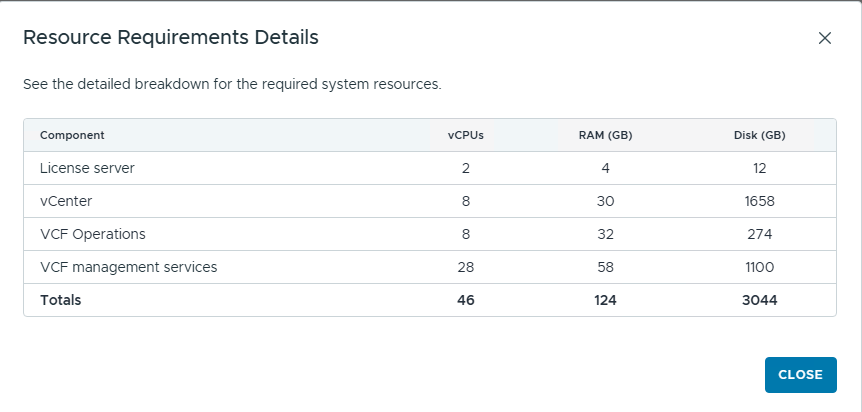
Typical sizing for a deployment:
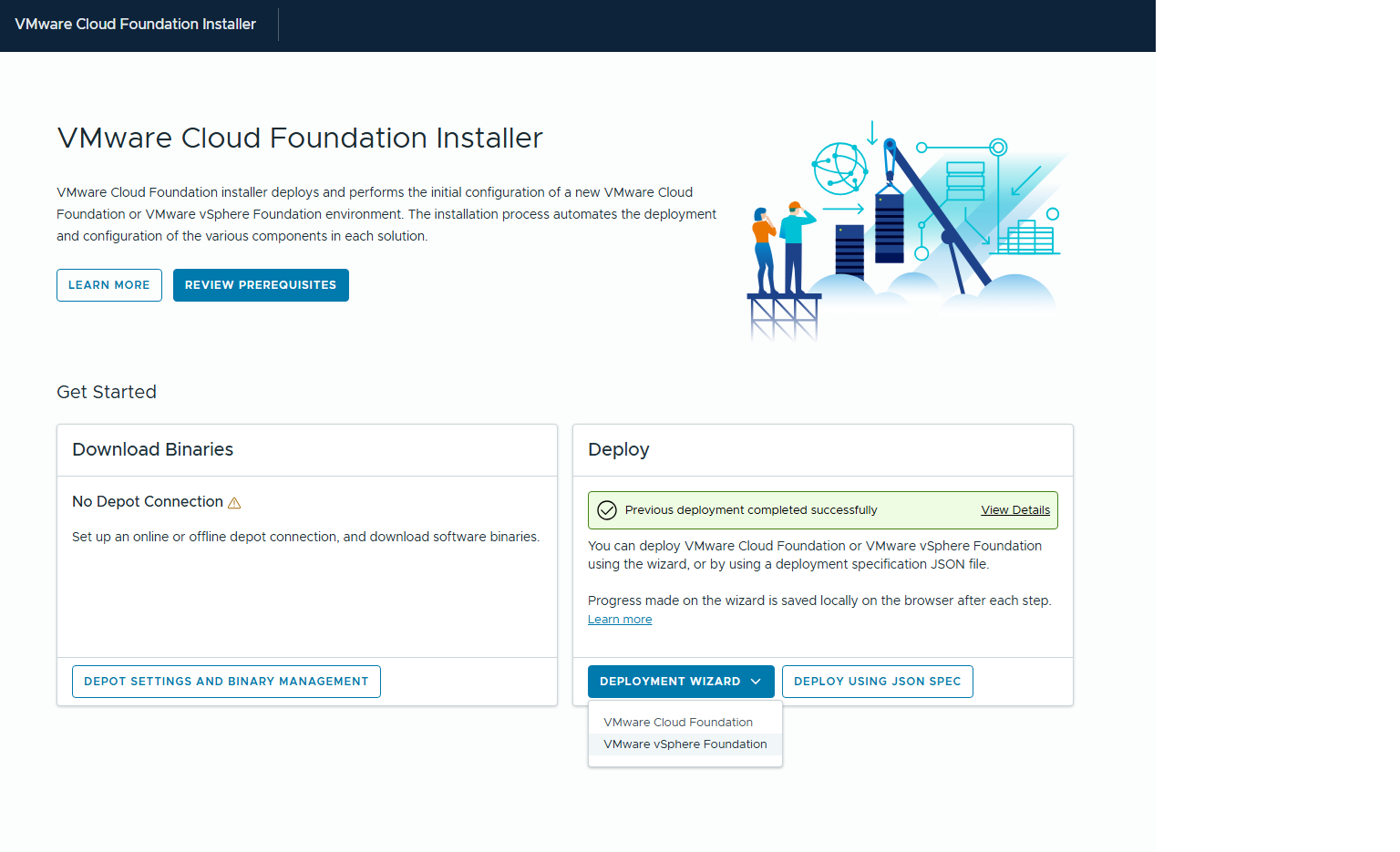
Once the VCF Installer is deployed you log on with the Admin account and the password you set during the deployment and you will be presented with this screen.
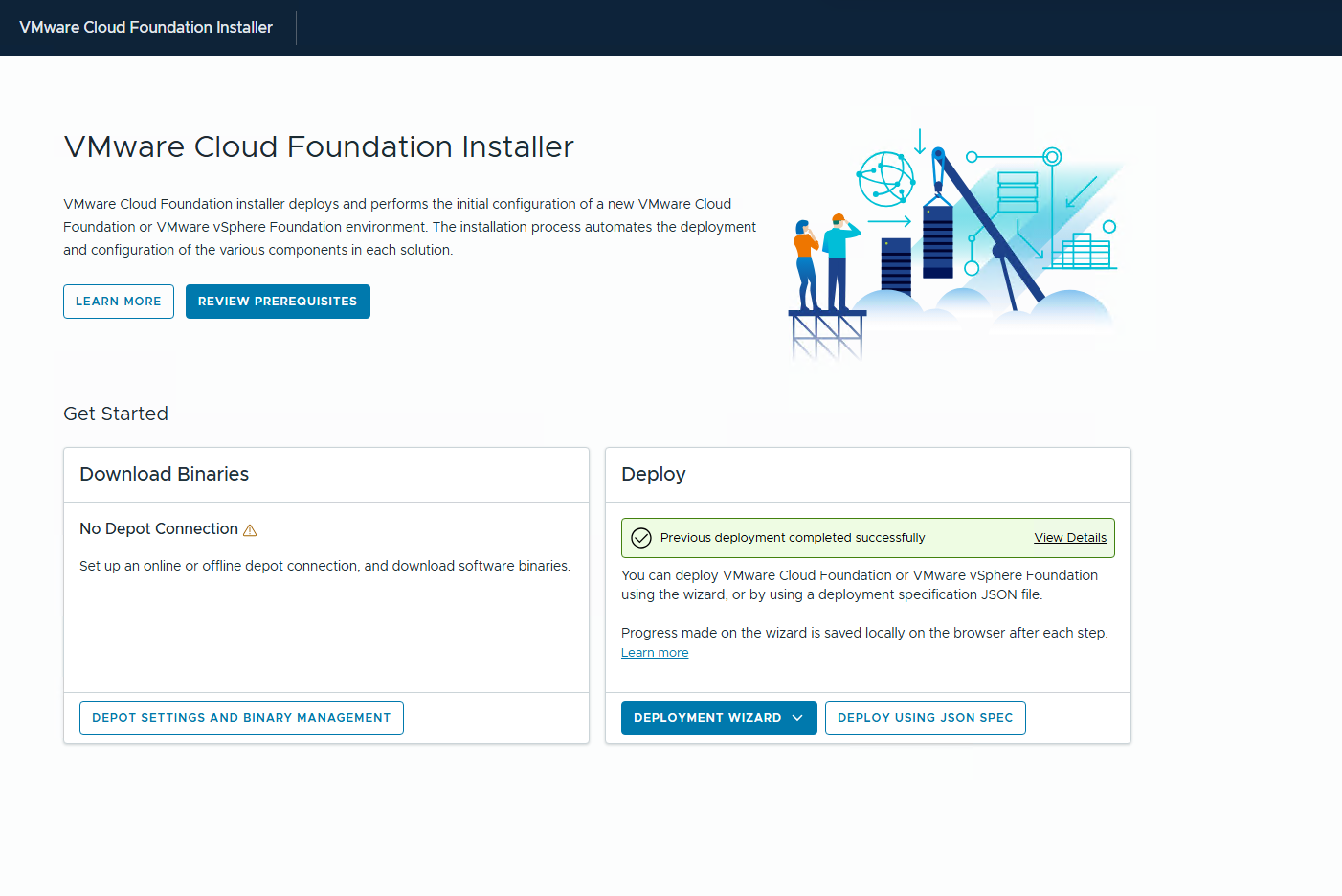
Setup your Depot options and download the binaries you require.
Please note that the installer will deploy the latest version of binaries in its repository so be careful when you choose what to host as if you are looking to deploy a certain version you might have to start again if you choose to host later versions as well.
Under the Deploy section click on Deployment Wizard and from the drop down menu choose VMware vSphere Foundation
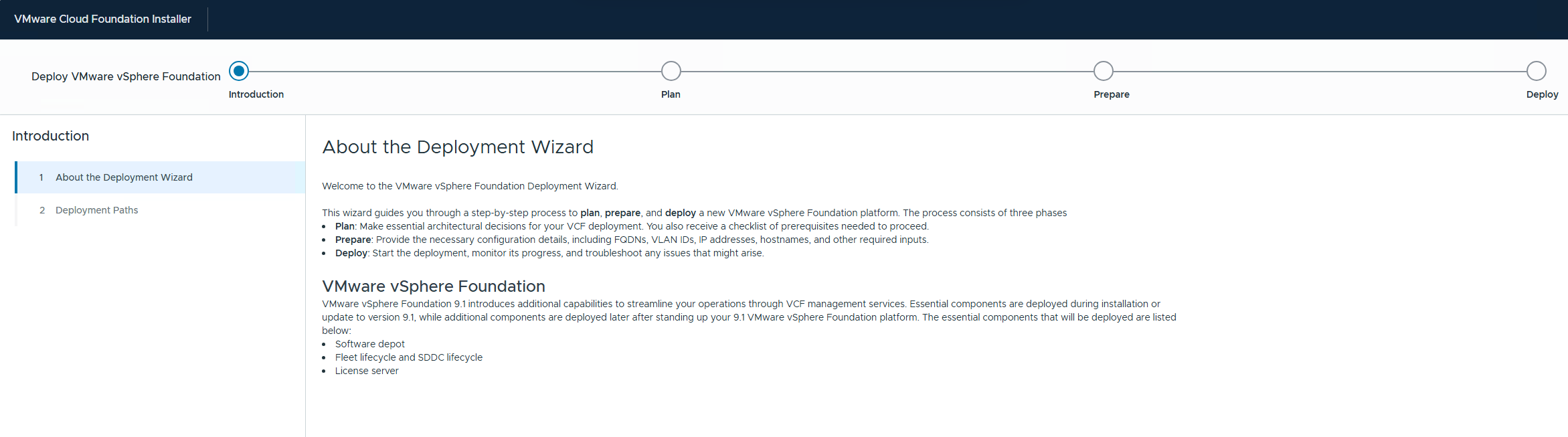
The deployment wizard will start with an introduction page, once you have read this click Next to continue the journey
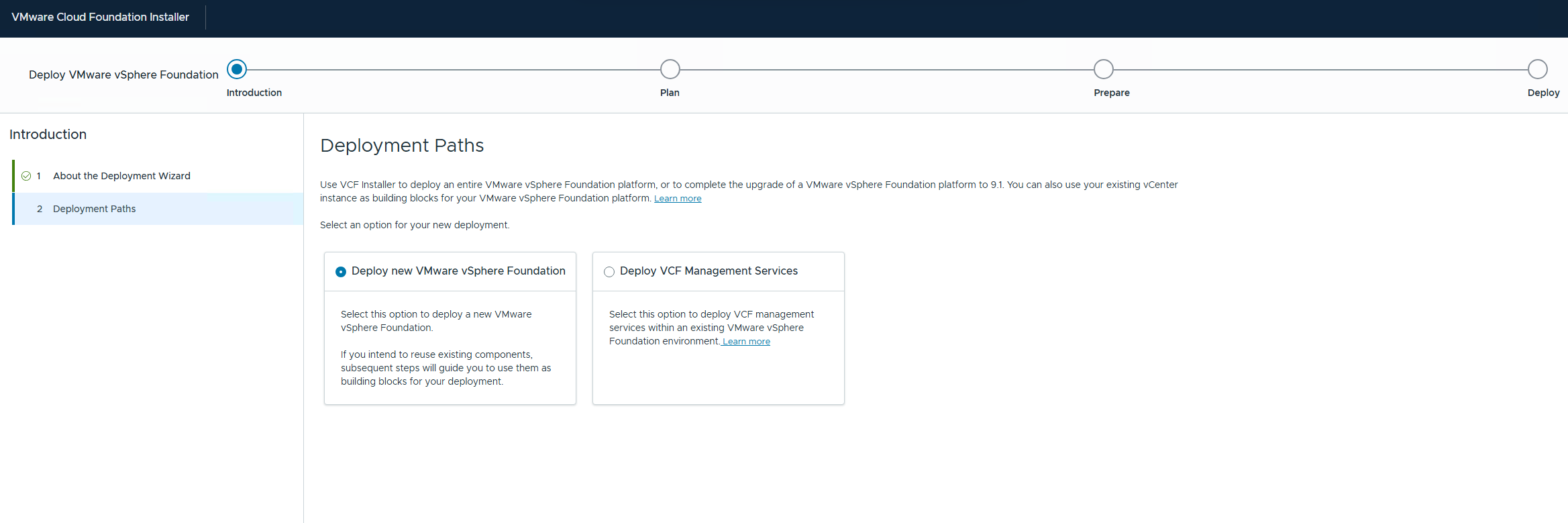
On the Deployment Paths screen you have the option of a New Deployment or to Deploy the VCF Management Services. The second option is available to you if you have upgraded to 9.1 from an earlier version and want to deploy the management services. Choose Deploy New and then, Next.
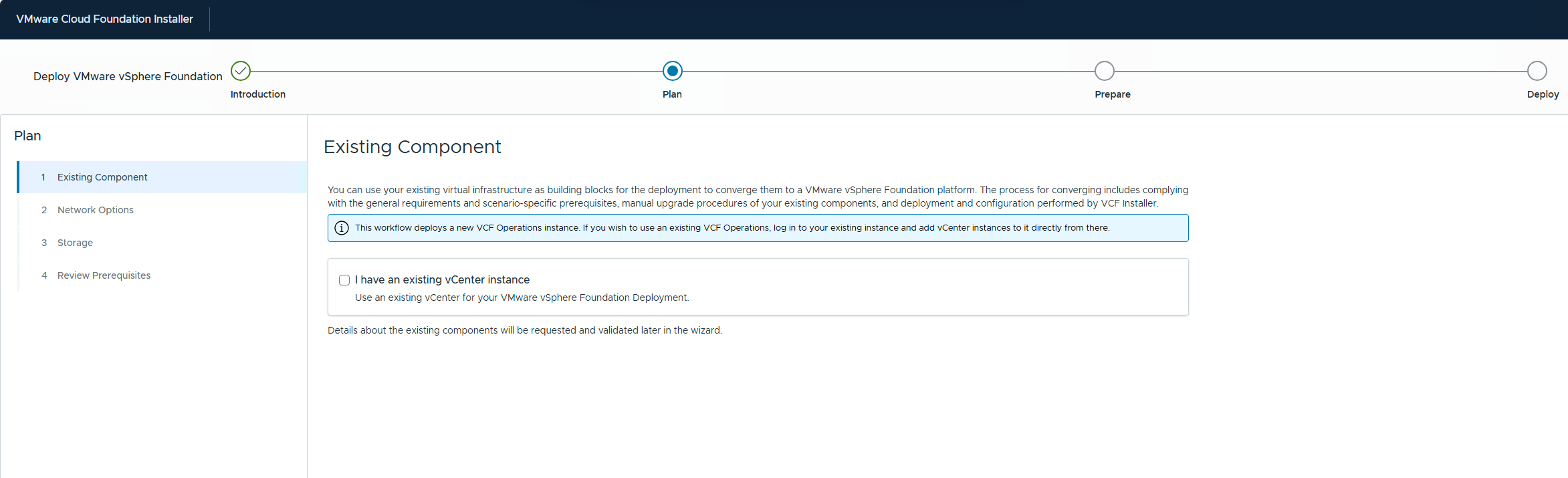
Moving onto the Plan section of the install and you will be asked if there are existing components already deployed. This allows you to take an existing deployment and bring it up to 9.1. For us we will not be selecting this and just clicking, Next to deploy a new vCenter
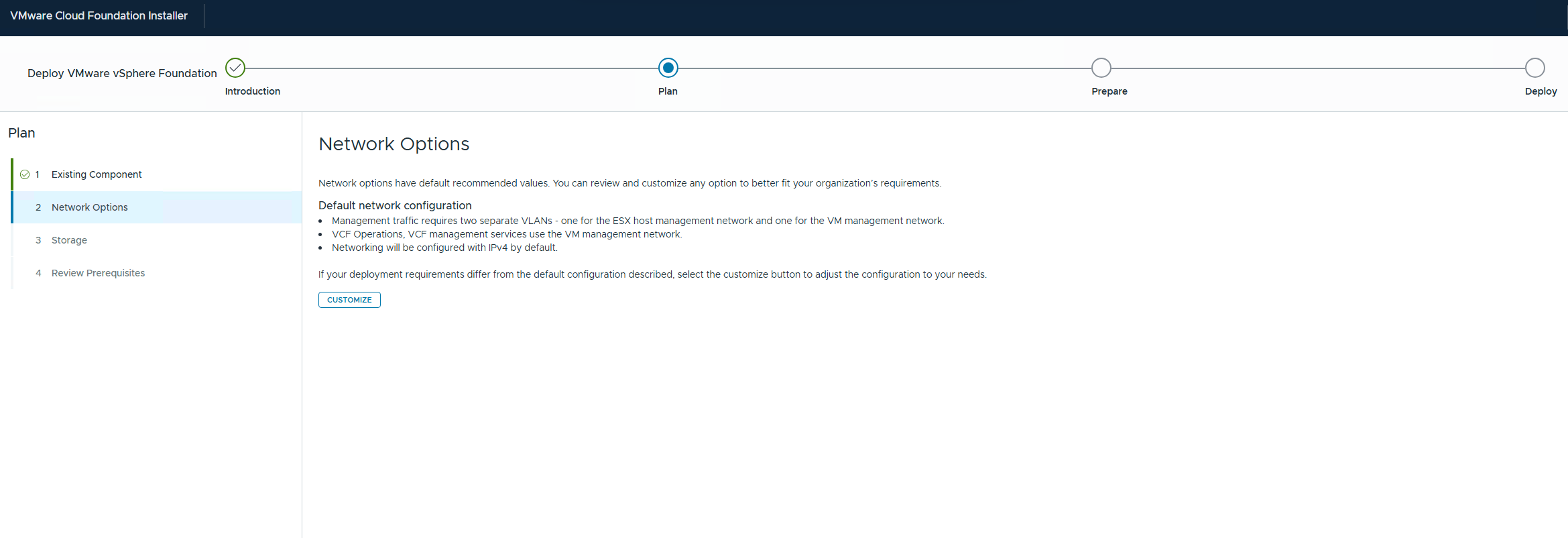
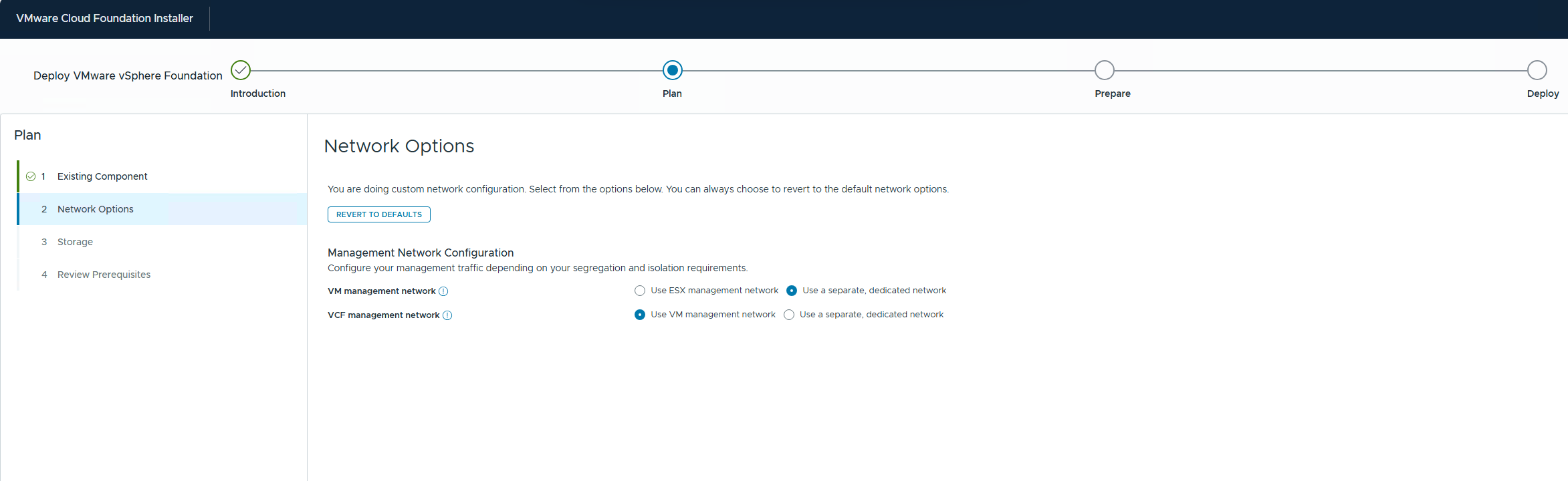
On Networking Options you have the default option where the ESX servers will be on one VLAN and the other components on the VM Management VLAN. If you want to change this you can click on Customize and make the changes to suit your deployment
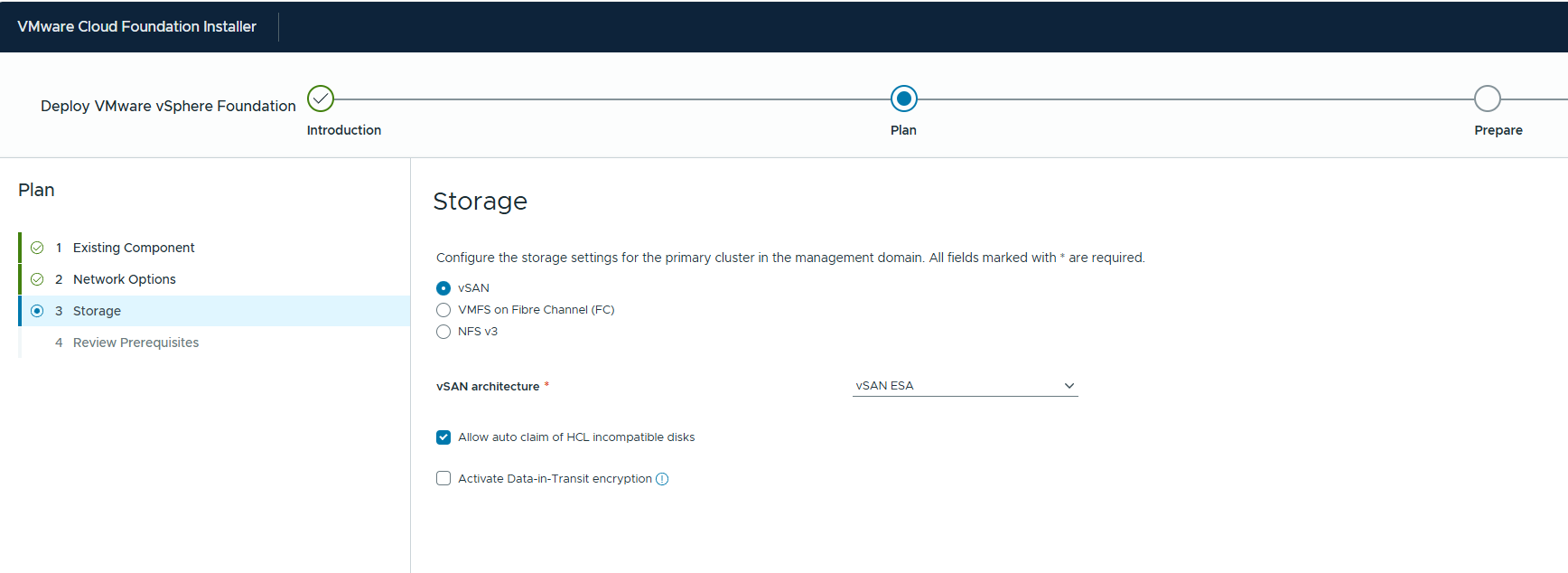
For Storage you have the option of vSAN, VMFS on Fibre Channel and NFS v3. For this deployment we are doing vSAN and specifically vSAN ESA. Note that in 9.1 there is an option to claim non HCL supported disks, this has been added to enable lab and test environments to be supported. If you do not select this, the disks will not show up in later configuration screens and cause validation errors.
You will then see a Review Prerequisites screen, check all is correct and click Next to continue
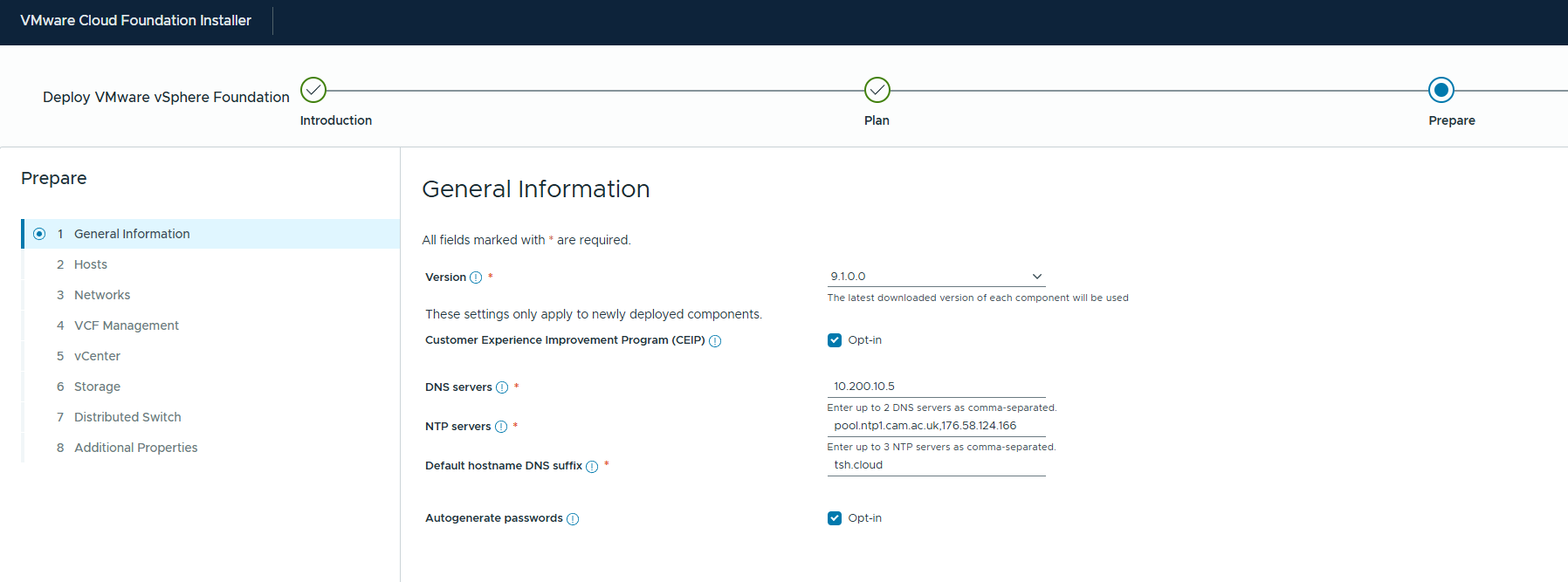
You now move onto the Prepare section of the install. Here you will choose the version, decide to opt in or not to CEIP and enter details for your DNS, NTP and DNS Suffix. As mentioned before when you choose the version it will default to the latest version that is in the depot. You don’t get the option to choose the point version if multiples have been downloaded. You have the option to Auto Generate passwords for the deployment. If you choose this then the installer will create all the passwords and present them to you at the end of a successful deployment.
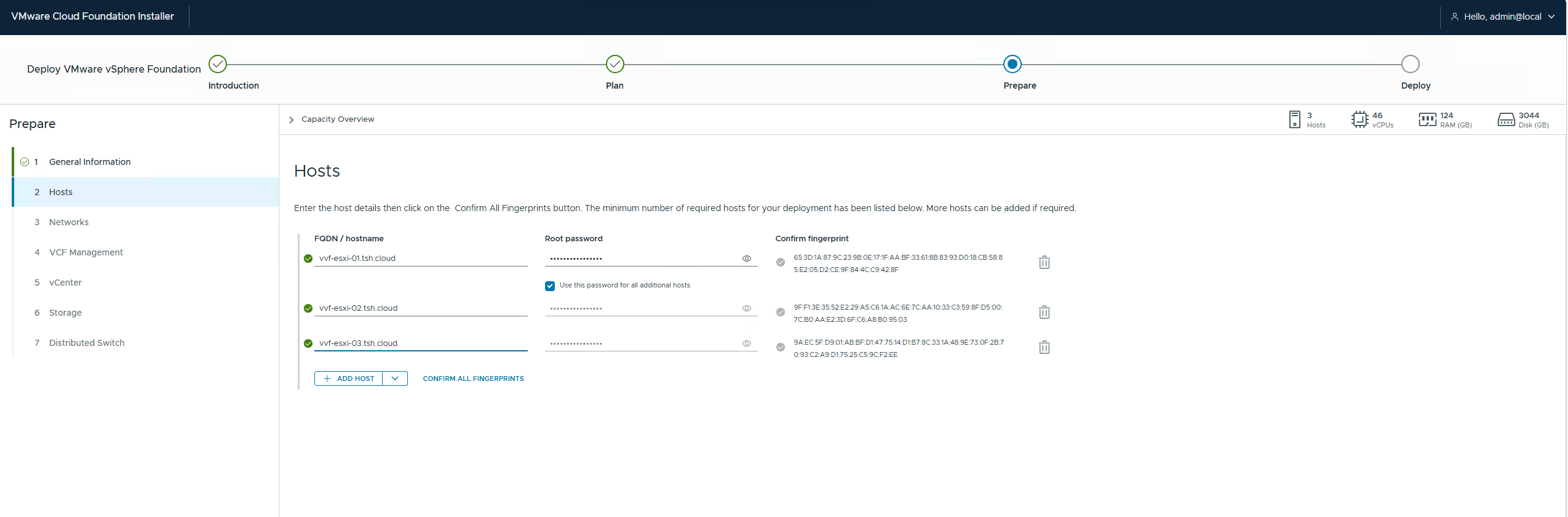
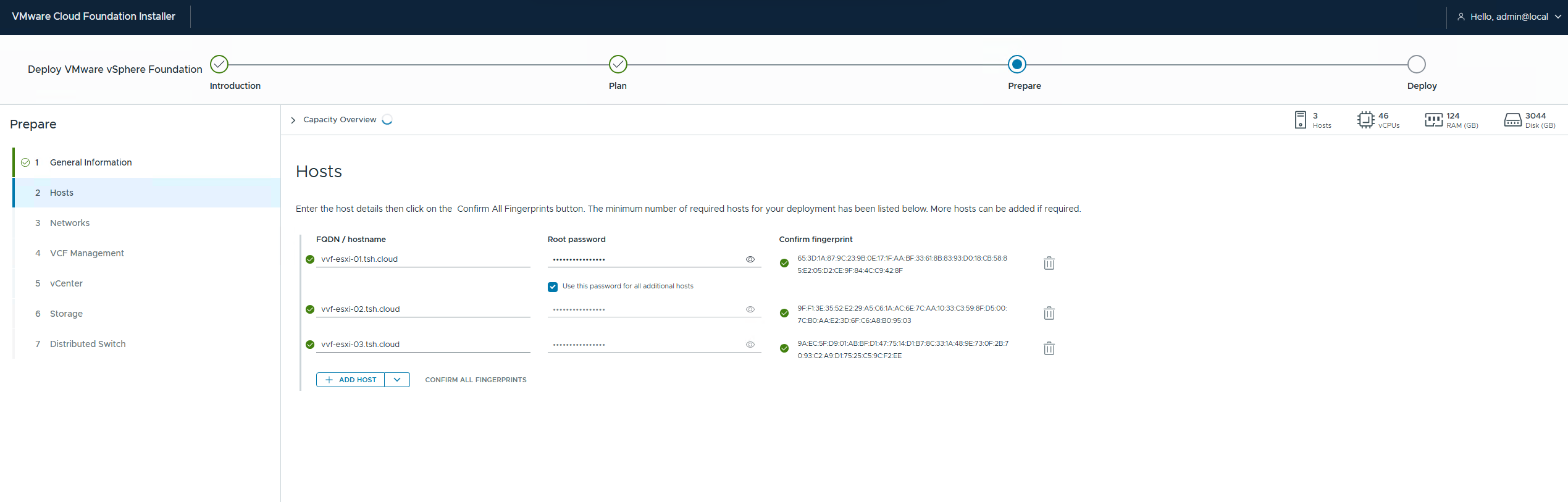
In the Hosts section, supply the details of all the hosts that are to be added as part of the deployment. I am only adding three but you can add as many as you need. Once you have added the hosts by DNS name not IP, entered the root passwords you need to click on Confirm All Fingerprints to make sure the green tick appears for all servers before click Next to continue.
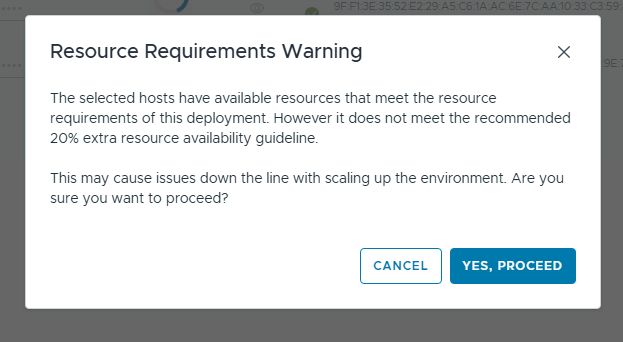
As this is a small lab environment I am running the bare minimum to get this VVF deployment running. Because of this I encountered the following warning about capacity that I had to accept before the install would continue. If you have a decent size lab or doing this in production you should not see these and will continue to the next steps

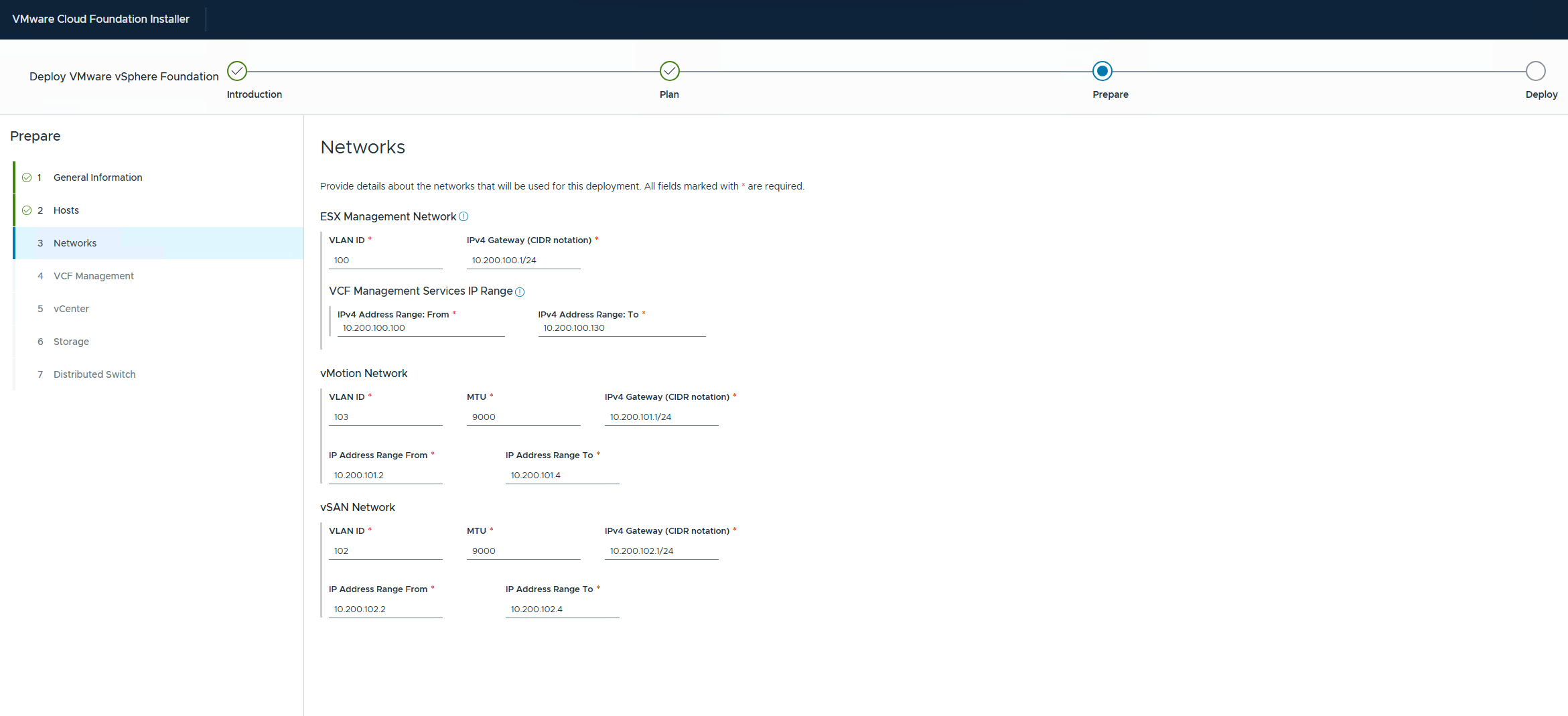
In the Networks section you are going to fill in the IP details of the various networks in use. You will need VLAN ID, CIDR and IP range details. Complete all of these and click Next to move on.
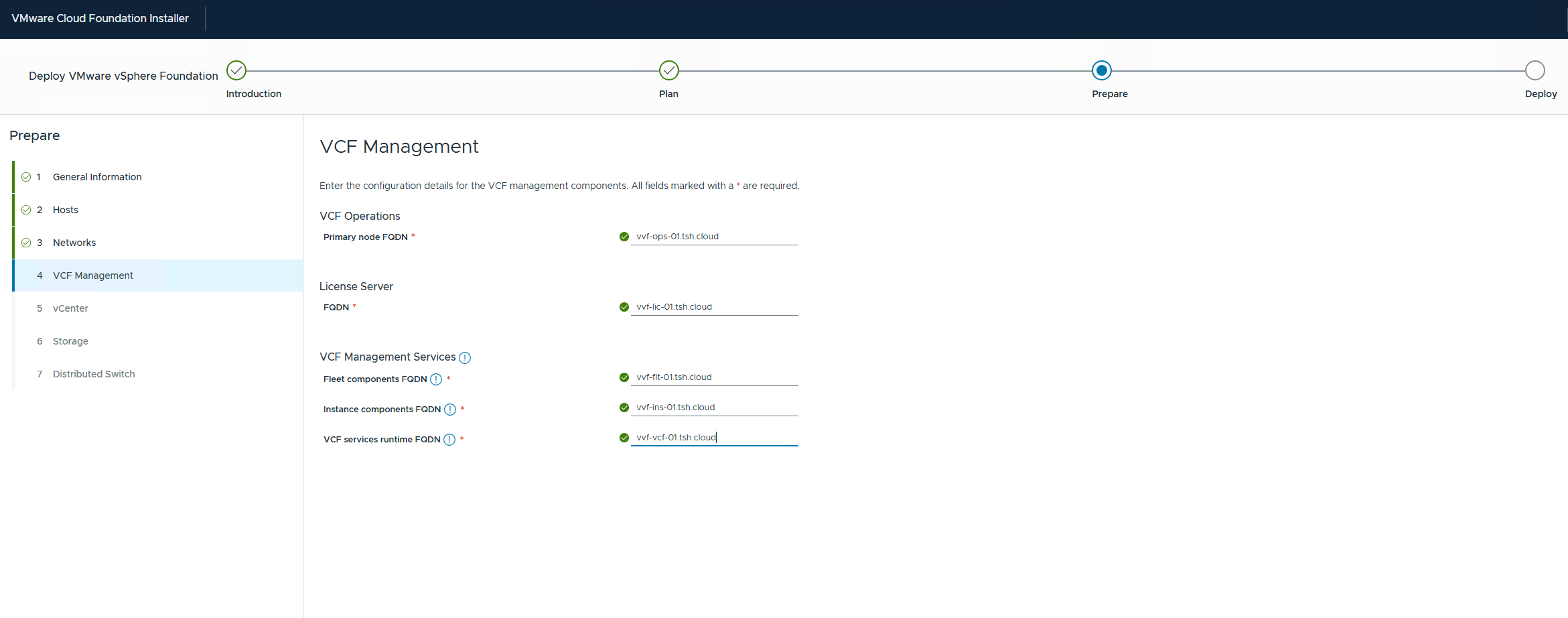
In VCF Management you are going to supply all the FQDN names that you will already have populated ahead of the install
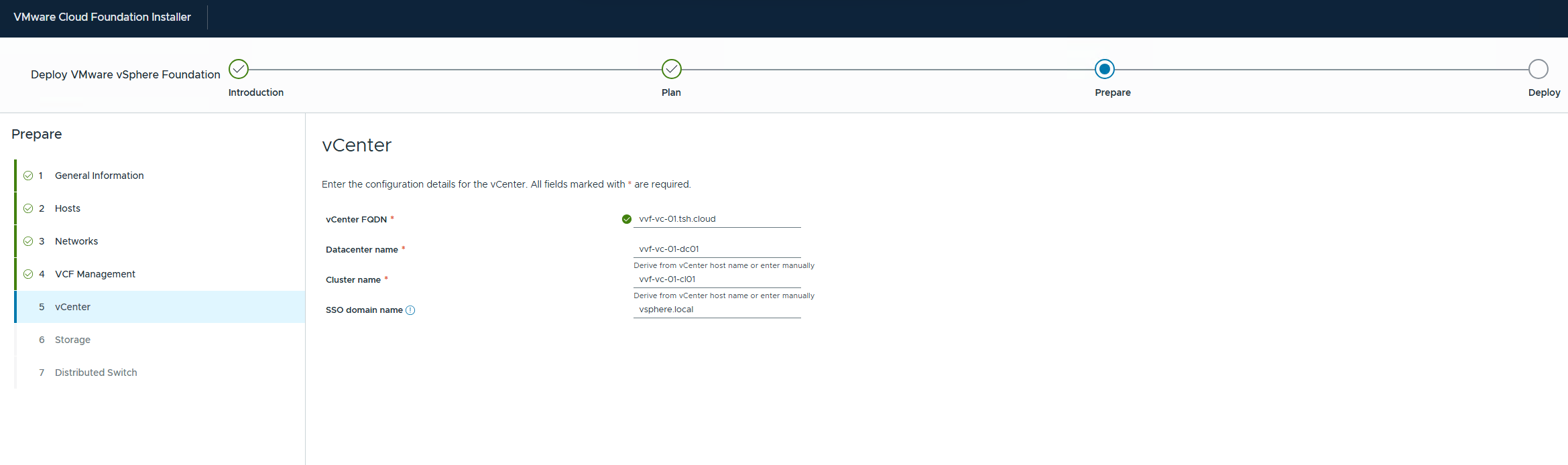
For vCenter add the FQDN, which will then resolve. Then add Datacenter, Cluster and SSO Domain Names before clicking Next to continue
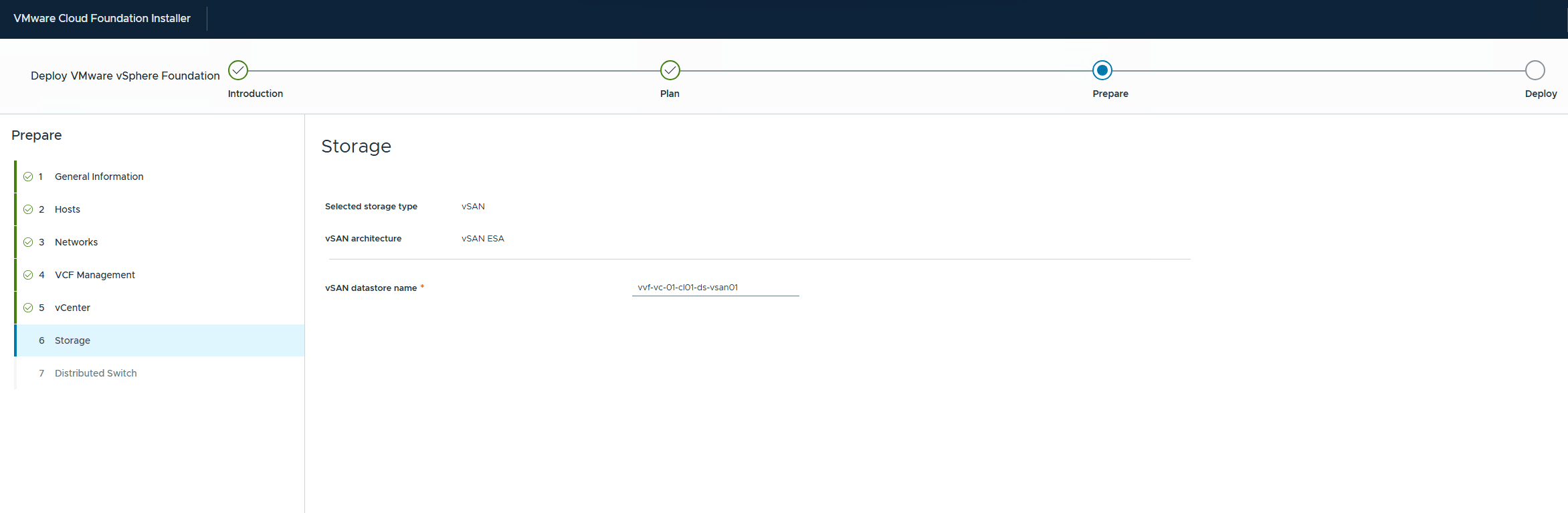
Storage will be prepopulated with the option you chose in the Plan. Enter a vSAN datastore name and click, Next to continue
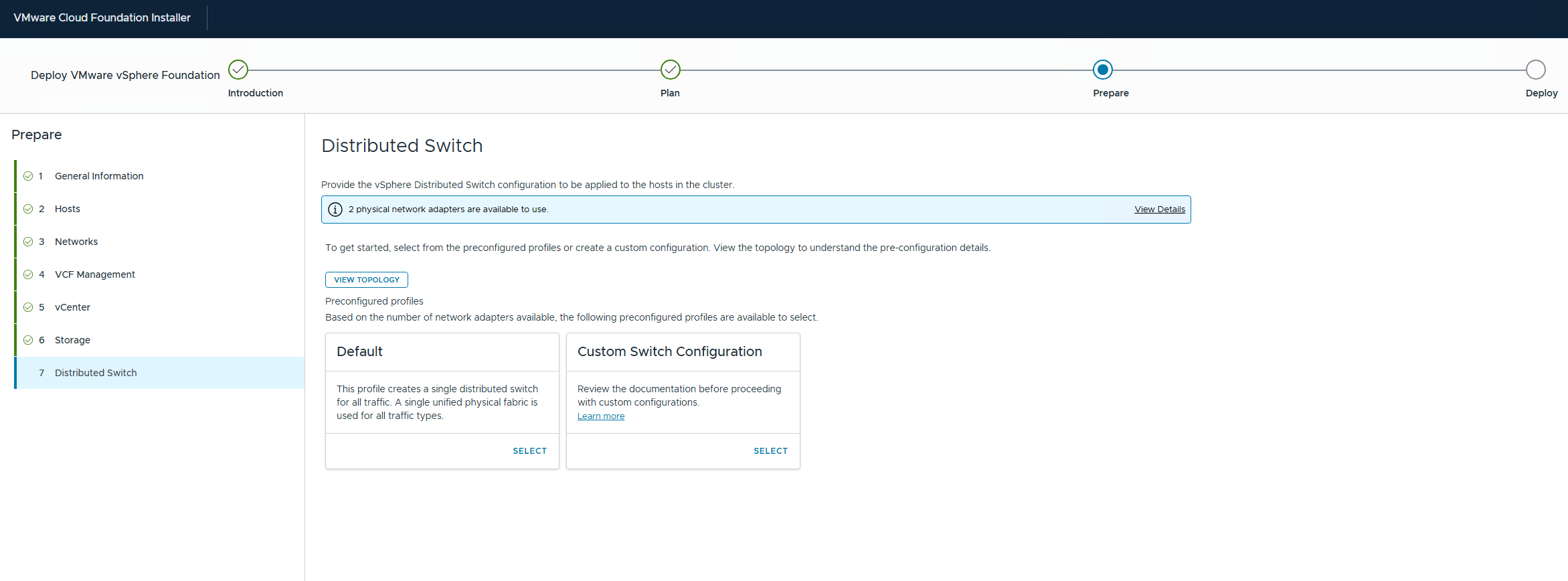
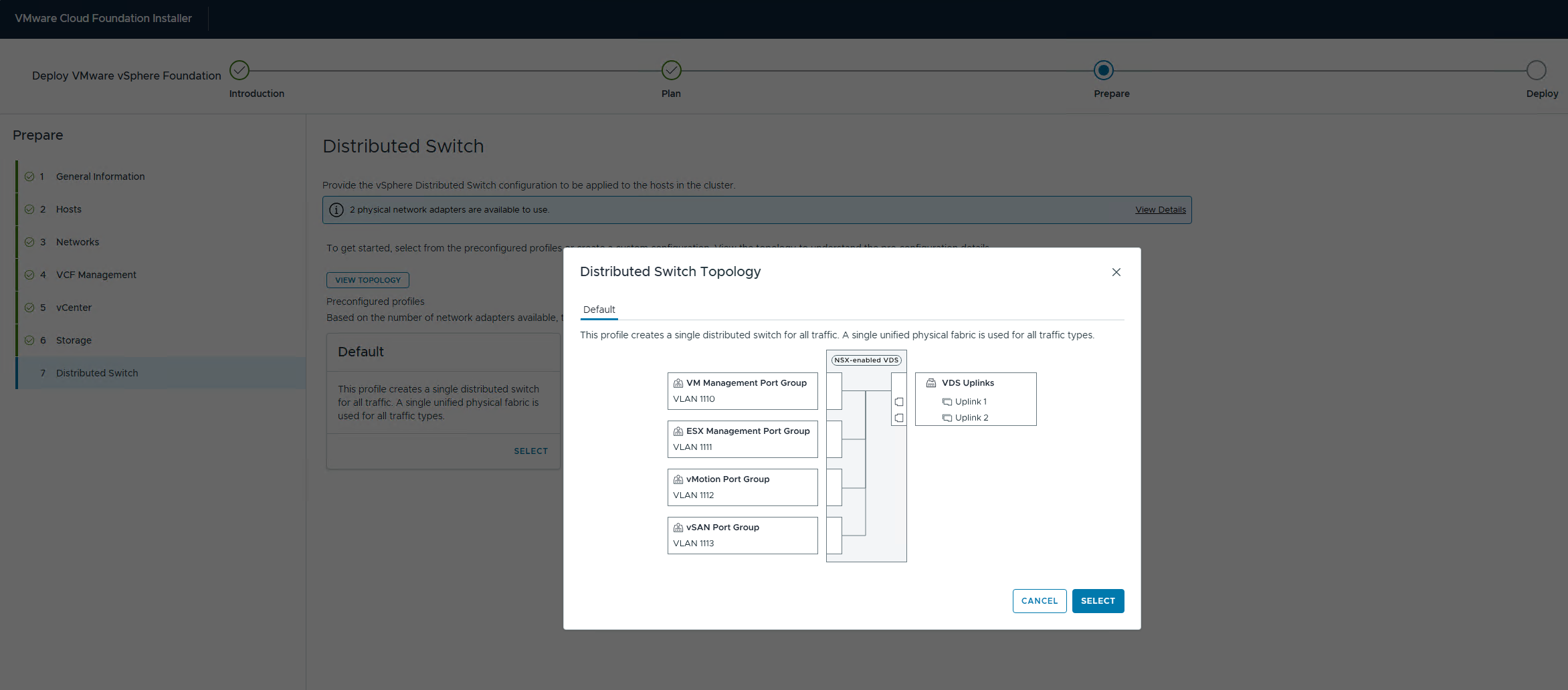
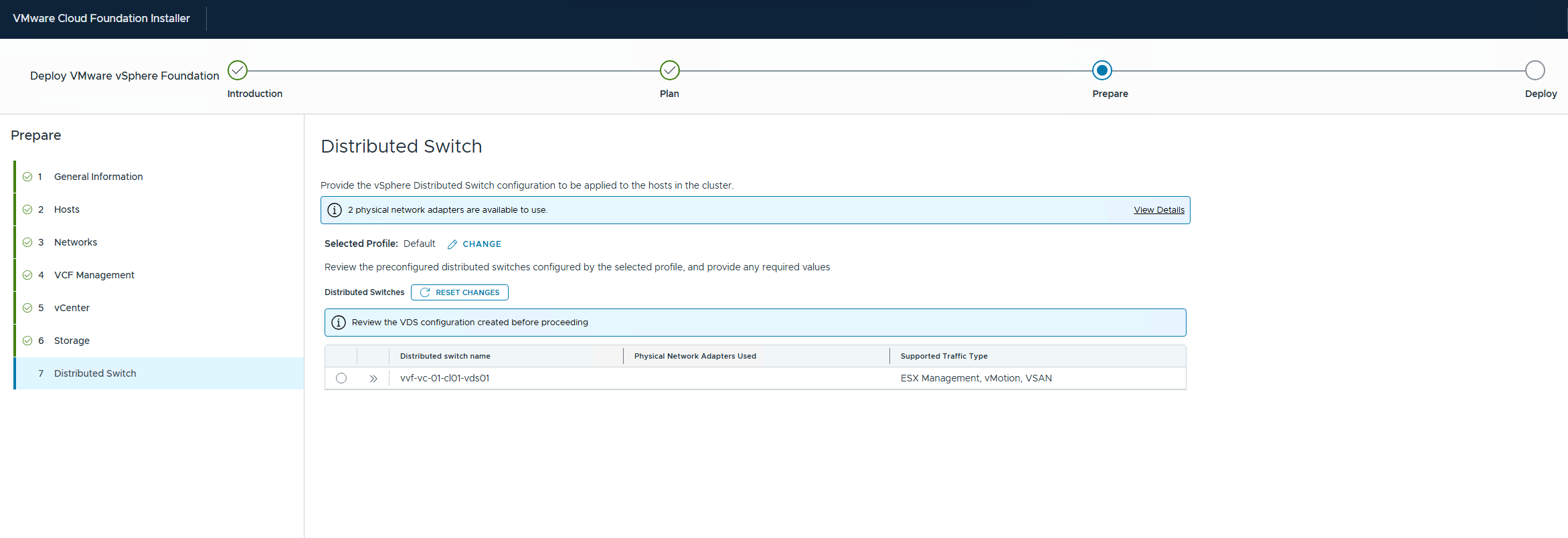
The final section is about your Distributed Switch configuration. I am using the default of two adapters in a single vDS. But you can choose the Custom Switch Configuration option and change this to suit your deployment. The options are unlimited as long as they are supported
Clicking Next will take you to the Summary page. At this point you have the option to download all your answers to a JSON file. This can be imported into the wizard if you need to make changes or redeploy your environment.
The great thing about the JSON is it can be used as a template where you can replace names and IP addresses and redeploy another environment. You can also use the JSON to change the size of the appliances you are deploying to save space.
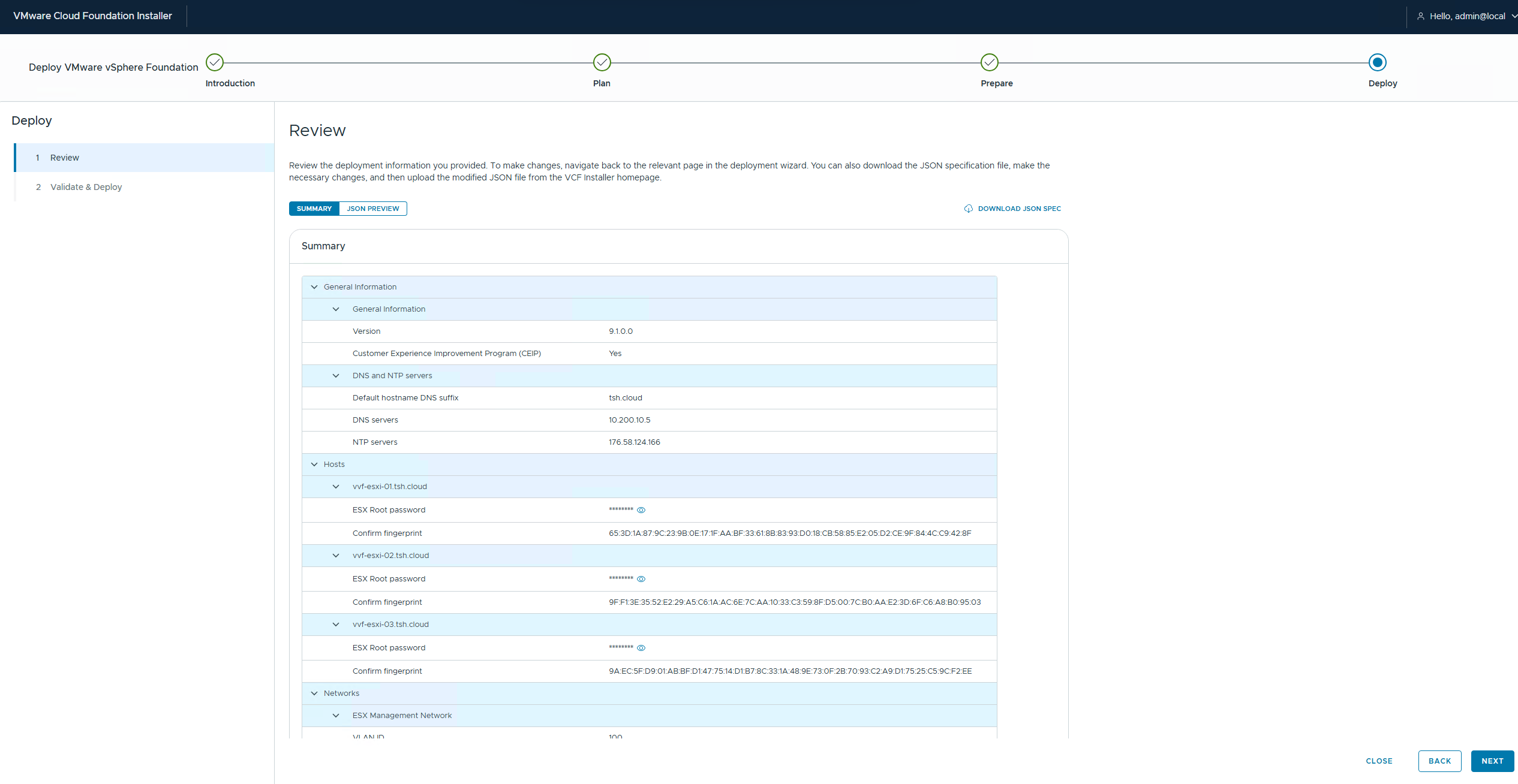
Click Next will then start the Validation of the environment using the settings you specified. This can take a while, if it reports errors you can either go back and change in the wizard or externally rectify them. If you have warnings you can choose to acknowledge and ignore them and let the deployment proceed. In my example the warnings are about the hosts because they are nested.
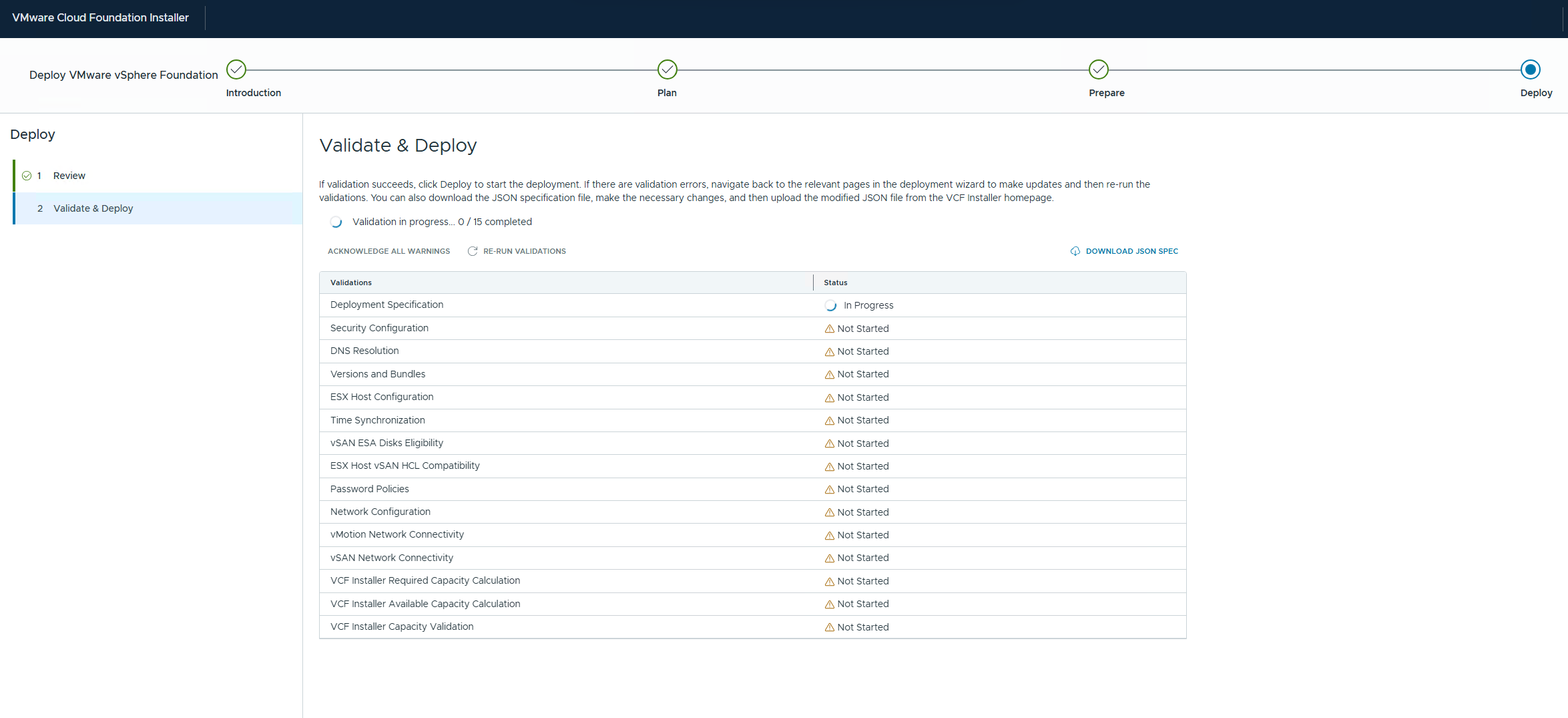
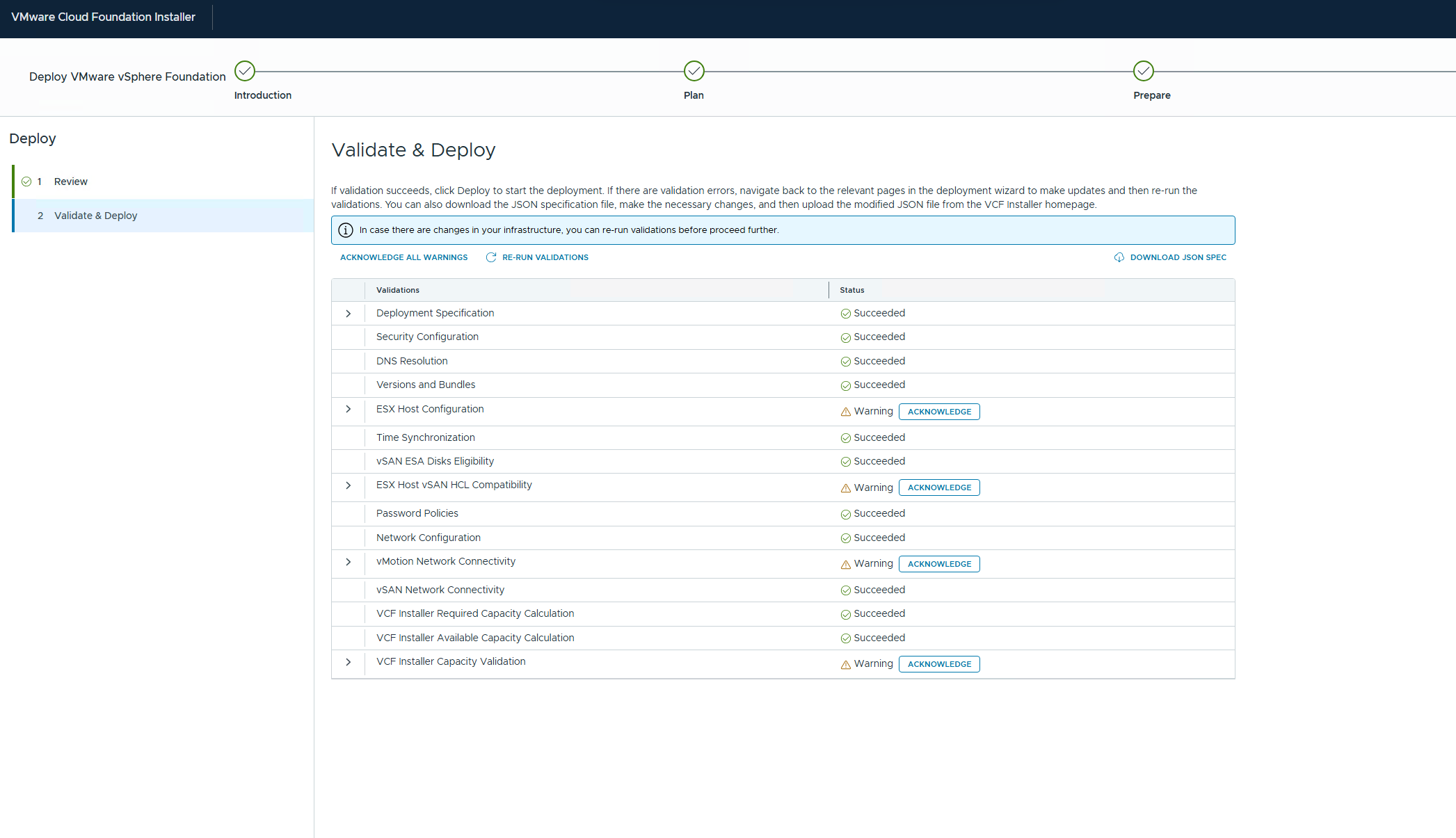
Click Deploy and you will be shown the Deployment Progress screen
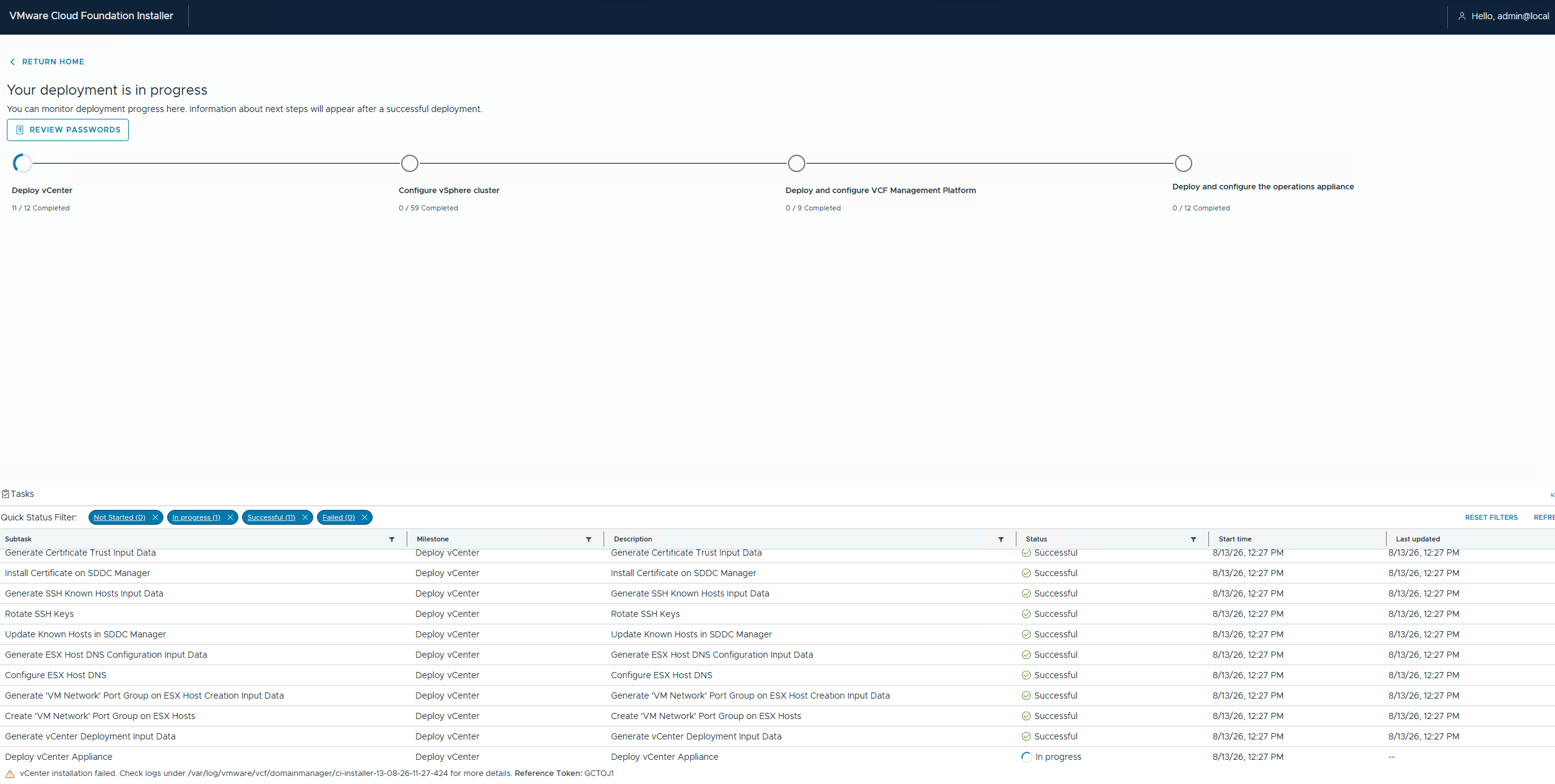
Once complete you will see the success screen. THIS IS IMPORTANT, make sure you click on the Review Passwords to retrieve the passwords that were set during deployment
Install via VCF Installer JSON Import
As mentioned once you have been through the deployment wizard, or completed a successful deployment you will have the option to download a JSON file containing all the build settings. This is great for a lab when you might be rebuilding regularly, and in production as an as-built record.
This JSON can be used as a template to build other environments as well, just replace DNS names and IP addresses and you can deploy a new environment quickly.
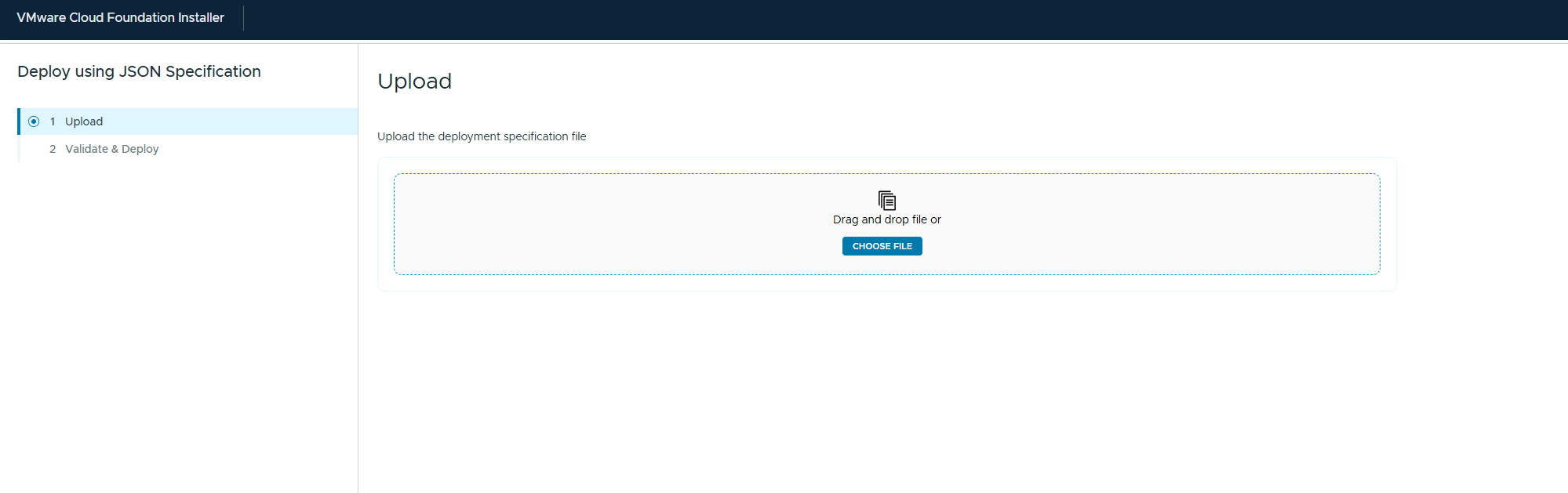
You use the VCF Installer to do this. On the home screen under Deploy click on the Deploy Using JSON Spec button
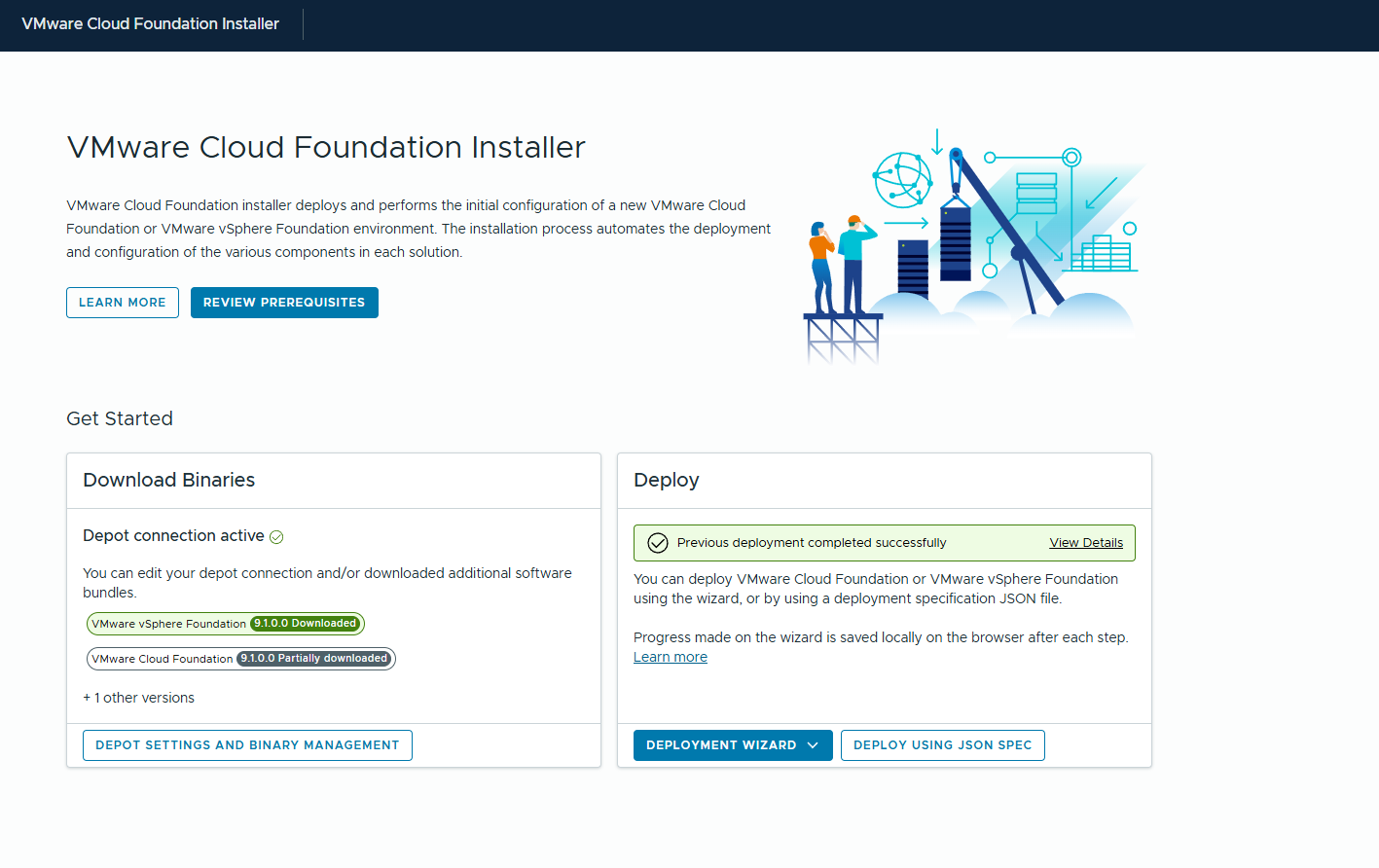
You will then be asked to Upload the JSON file, click on Choose File and browse to the location of the JSON
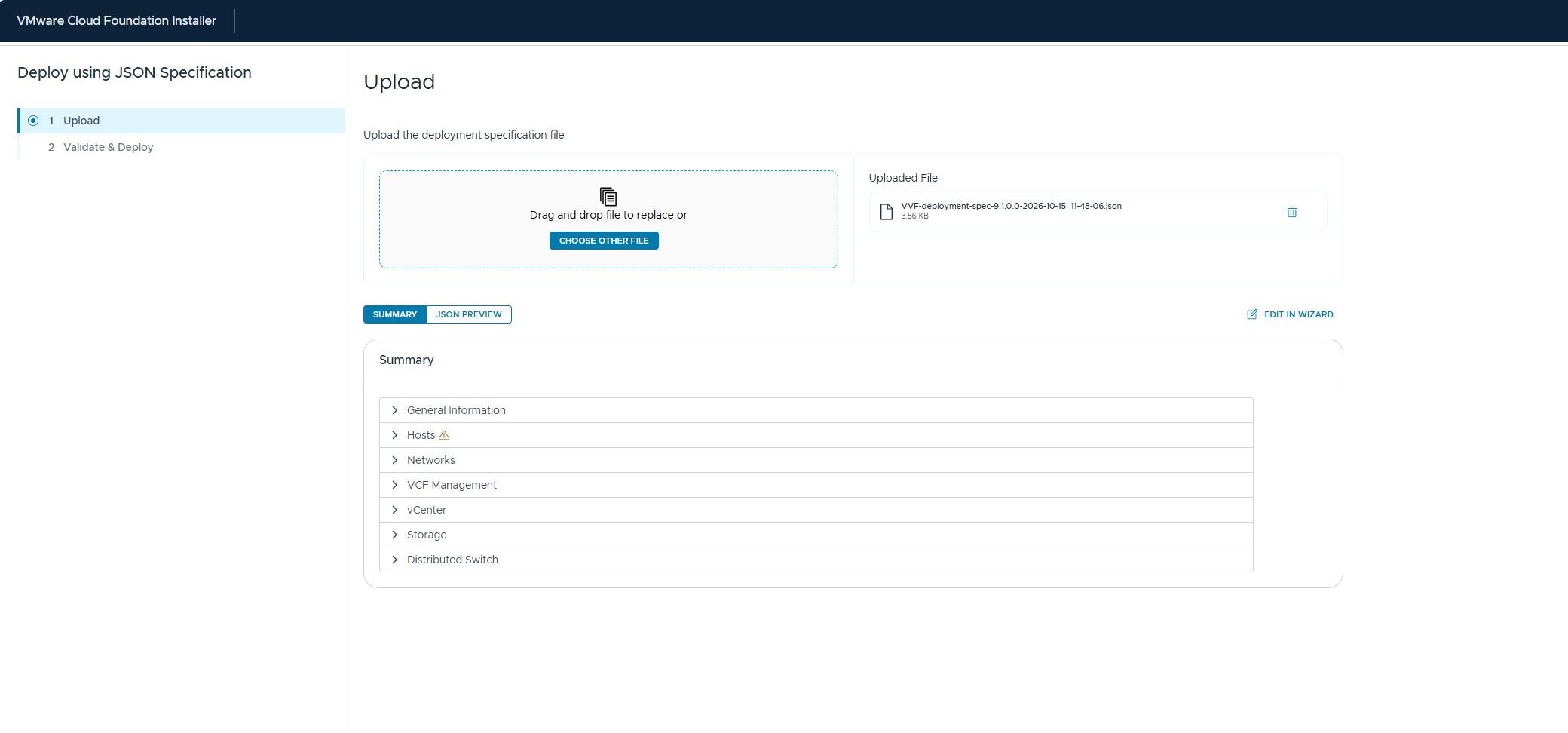
Once loaded you will be able to see all the options and if there are any warnings or errors. You have the option to Edit In Wizard that will allow you to run through the wizard with the JSON populated information. This allows you to make changes and correct any errors before the deployment
Thank you for reading this article. Coming up next will be the Day 2 Operations, allowing you to see settings that need configuring after the initial deployment. We will then cover what patching looks like in a VVF environment and what the VCFMS adds to this experience.